 |
| Frankly set, ABC TV, 2022 |
Showing posts with label video conference. Show all posts
Showing posts with label video conference. Show all posts
Wednesday, October 26, 2022
Chat Show Format for Live-from-the-Classroom Events?

Thursday, July 7, 2022
Desktop smartphone holder for webinars

Saturday, April 30, 2022
Provide Eye Contact to Enhance Video-conference Engagement?
Brucks, and Levav (2022) have found that people were significantly less productive via video conference, than at a face to face meeting. That may sound like common sense, but this was a carefully conducted experiment, under controlled conditions, measuring productivity. The researchers also tracked the eye movements of participants and were able to provide a plausible explanation for the loss of productivity: participants online were not able to engage in eye contact. Previous research found that the eye-contact is an important part of communication. This may explain some of the awkwardness in video conferences, with participants talking over each other.
However, while F2F may be preferable, it is not always possible. When then COVID-19 pandemic struck I was unable to attend the usual symposia and conferences with colleagues. Videoconferencing was the least worst alternative. In one case it has worked very very well. Each week I have been attending the ASCILITE Mobile Learning Sig, and have ended up writing a series of papers over the last two years with a group of people who I have never met face to face. Of course this is a group of people who are experts in online communicaiton.
I was surprised the Brucks, and Levav did not go on to suggest technical fixes for this problem. One would be carefully positioning the cameras and video displays, so that the geometry of a face to face meeting could be matched. This approach is used in some high end corporate video-conference rooms. Each room has the same geometry, with the same meeting table, camera and a large video screen up against one side. The aim is to have the remote participants appear life size, sitting at extension of the table in the same room. An example is Webex's Room Panorama Immersive Telepresence.
Another way to provide realistic eye contact would be to manipulate the image to modify the geometry. This feature could be added to video conference software, in a similar way to cat filters, and artificial backgrounds. The software would identify the participants face in the video, and distort the image so it appears they are looking at the other party. A less processor intensive approach would be with a setup utility which would indicate where the camera and screen should be located, for best effect.
Reference
Brucks, M.S., Levav, J. Virtual communication curbs creative idea generation. Nature (2022). https://doi.org/10.1038/s41586-022-04643-y
Tuesday, October 19, 2021
Fluorescent Green Screen Version 3
Unhappy with the finish with fluorescent poster paint on my green screen for a virtual Zoom background, I decided to go back to using wall paint. Previously I did not find anyone in a paint shop in Canberra who knew what "chroma key green" was. But Bunnings Belconnen in Canberra had no problem. They selected "Chroma Key Green" from the Dulux corporate colors library, and made from a 250 ml sample pot of British Paints Extra Deep (tinted DD 0Y 43 SS 0Y 5). For the other side of the screen I used Taubmans "Hi-C Blue" (no mixing required).
Saturday, October 16, 2021
Web Camera with Zoom Lens for Zoom

The camera sensor is housed in a very rugged, small black metal box, with a standard camera mount thread on both the top and bottom. The lens has screws to lock the focus and zoom in place once set. This is not a camera for live action, as it is difficult to focus, but one you set up, lock in place and leave. The camera has a USB plug, and operates as any other web camera. Similar products are offered on Amazon.
When the COVID-19 pandemic stuck last year I had to set up my home office for teaching by video-conference. However, I decided I should not have anything out of reach of a typical teacher, or student, as education should be accessible to everyone. So I used a low cost, low speed broadband connection, a modestly priced laptop, and a consumer grade web camera. This worked fine, especially with Zoom. However, I decided it was time for an upgrade.
Sunday, October 3, 2021
Fluorescent Green Screen for Virtual Zoom Background
 |
| Fluorescent Green Screen |
 |
| Image added to green screen |
Wednesday, August 25, 2021
Smart Phone for Video Conference in India


Hand holding the phone makes for wobbly video and a phone on a desk is too low to give a good angle. A tripod with clamp holds the phone securely at a good height. It is still possible to pick up the whole unit, if necessary, and move it to another location.
When WebEx started, it offered to call me for the sound, so I accepted this option. One bonus of this is that if you receive a phone call, the conference audio is put on hold, so there is no risk of the conference participants listening in on my phone call.
Wednesday, July 28, 2021
Hybrid Learning Happening
I took part in my first hybrid lecture at The Australian National University, for computing students yesterday. This went okay with 10 students in the room, and 70 online. It was a bit tricky with four presenters, three in the room and one remote, for two hours. A further complication was that the resolution of the laptop used for Zoom was too high to connect to the room projector. You would think a stack of computer people would be able to sort that out, but by the time we realized what the problem was it was too late to change the setup. So we had one slide show for people in the room using the built in computer and the same slides on the laptop for those on Zoom.
The Zoom meeting format was used, rather than a webinar. There was only one instance of an open microphone disturbing the presentation, and the students policed that themselves with someone asked everyone to "mute you mic" in the chat forum. One of the staff monitored the audio quality and the chat questions, via another laptop. Students were invited to ask questions live by audio and that worked fine.
One problem was that because the students in the room were not watching the Zoom session, they could see the remote presenter's slides, but not the presenter. So in that way the remote students had a better experience than those in the room.
The Zoom session was left open after the presentations for further student questions, while other staff handled questions in the room. There were mostly of the "can I still enroll, get into a tutorial group, resister for a project" type.
This was my first hybrid presentation for some time and I had forgotten how stressful it is, but how rewarding it is to be in a room with students and colleagues. Added to the stress of talking to a very bright and demanding audience, is added the complication of making sure you remain in the field of view of the camera, and ensure the slides are working for two audiences. It worked okay, but I still provided students with a recorded video version in advance, in case something went wrong live.
Saturday, July 24, 2021
Lighting for Video Conferences
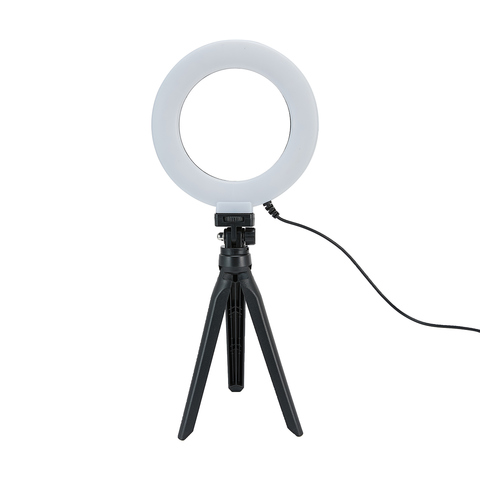 |
| 6in. Tabletop Selfie Ring Light |
When using a virtual background with video conferencing, it is important to have even lighting, otherwise part of you may be chopped off, or the real background visible. Any office lamp will do, but there are ring lights available specially for this purpose. The ring lights have a circle of LED lights,and are designed to go around the camera lens. I find it too distracting to be looking directly into the light, so instead have it at 45% pointing at the wall, behind my computer screen. This reflects a soft light onto the background.
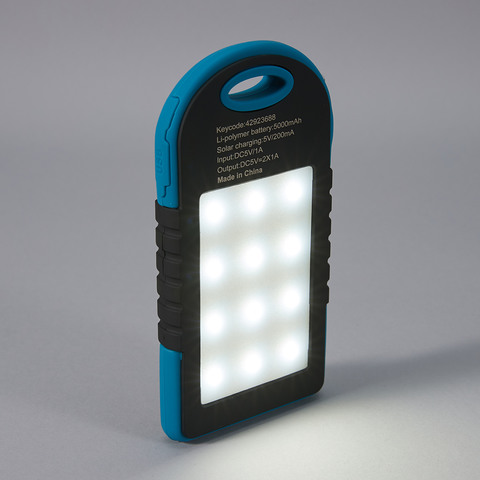 |
| Power-bank with light |
Telephoto Lens for Closeup in Zoom Meetings
 |
| 2x telephoto lens & virtual background in Zoom. Tom Worthington, 24 July 2021 CC BY |

 |
| 198 Degree Fish-eye Lens, Tom Worthington, 24 July 2021, CC BY |
 |
| With Polarizing Filter, Tom Worthington 24 July 2021, CC BY |
 |
| Without telephoto lens. Tom Worthington, 24 July 2021 CC BY |
 |
| With 2x Telephoto Lens. Tom Worthington 24 July 2021 CC BY |
The narrower view also allows a smaller green screen to be used for a virtual background. In the example shown, I am using a sheet of lime green polyester acoustic pin-board, 1200 mm x 800 mm ($30.50 from a hardware store).
Most of the clip on lenses sold for smart phone are wide angle. It took me some time to find a telephoto. One online store sent me a wide angle instead of a telephoto. So for the first time, in a long time, I went into a camera store. The kit I purchased is an Apexel 5 in 1 Clip on Lens Kit ($19.95 from Ted's Cameras, Canberra Center). Note that you will only need a 2x telephoto lens and there are higher quality units available separately at a higher price.
Friday, July 23, 2021
Folding Lilac Screen for Virtual Zoom Background
The second hand folding room divider
Lilac folding screen, in Zoom
with virtual background.
Vertical fold lines visible.
Photo by Tom Worthington,
23 July 2021 CC BY
, I painted blue for virtual backgrounds, was too dark to work well with Zoom. So I went back to the paint shop and had a lighter shade made up. This was intended to be a bright blue, and the hex code for the color looks blue on screen (#0061FF). However, the paint looks more Lilac, but works well with Zoom.
Lilac folding screen,
vertical fold lines visible.
Photo by Tom Worthington,
23 July 2021 CC BY
 |
| QR Code for Bright Blue #0061FF from Taubmans Coloursmith |
Tuesday, July 20, 2021
Folding Blue Screen for Under $20
 |
| Blue folding screen, with vertical fold lines. Photo by Tom Worthington, 20 July 2021 CC BY |
 |
| QR Code for blue, from the Taubmans Coloursmith application |
 |
| Blue |
 |
| Blue folding screen, in Zoom with virtual background. Vertical fold lines visible. Photo by Tom Worthington, 20 July 2021 CC BY |
 |
| QR Code for Bright Blue #0061FF from Taubmans Coloursmith |
The literature points out that a blue screen will need more light than a green screen. But it may be that a less dark shade of blue would work better in an office, where studio lighting is not available. The lightest possible shade of this would be #0061FF. Another option would be the "Hi C Blue" (#0174b3) which is one of the standard colors of the Taubmans range.
 |
| Green |
 |
| QR Code for green, from the Taubmans Coloursmith application |
Saturday, July 17, 2021
Folding Green Screen for Under $20
 |
| Green folding screen, with two vertical fold lines. Photo by Tom Worthington, 17 July 2021 CC BY |
 |
| Green folding screen, with virtual background. Fold lines are hidden by Zoom. Photo by Tom Worthington, 17 July 2021 CC BY |
This screen is only 1200 mm wide and has to be so close to fill the view, it is a bit cramped in front. I could use a camera with a narrower field of view, but a screen with four, rather than three 400 mm panels would be more practical.
I am considering painting the other side of the screen with chroma key blue. An alternative is to leave it with a decorative pattern, so I can put the screen in front of the desk when not in use so the room looks less like an office.
Monday, June 28, 2021
A $4 Green Screen for Zoom Background
 |
| Tom Worthington in chroma key body suit, without hood, so just face shows |
 |
| Tom Worthington in chroma key body in front of green screen |
This techniques is called Chroma key, where a specific color in an image is replaced with another image. While any color works, there are two standard ones used in the video industry, a bright green and a bright blue. If you use the standard colors, you can use props which match and will disappear into the background. An extreme example is having a person disappear.
 |
| Tom Worthington in chroma key body suit with hood covering face |
 |
| Tom Worthington using the green screen in normal clothes |
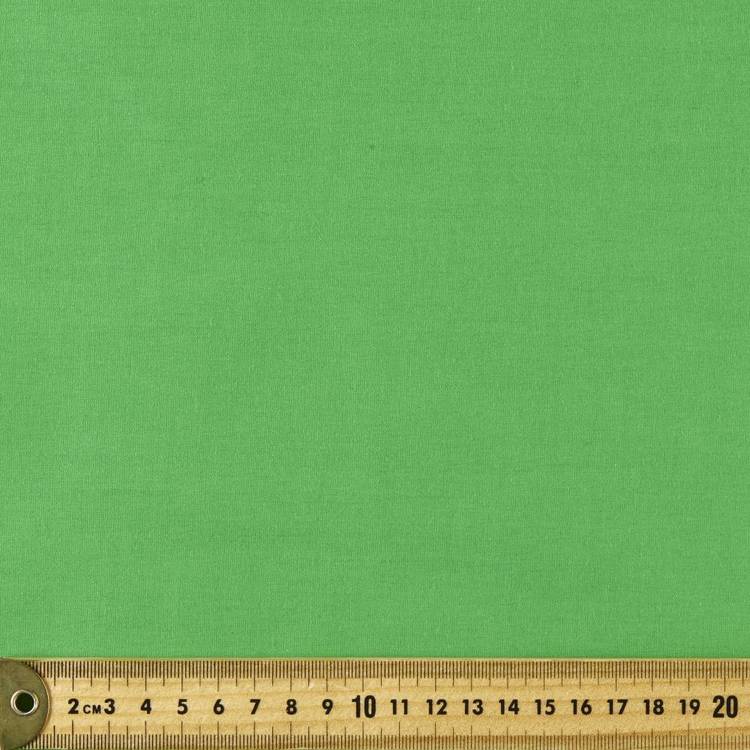 |
| Apple colored Top Pop Poplin cloth, from Spotlight |
Wednesday, June 23, 2021
Stanford University Computer Science Zoom Class a Quantum Leap Backwards
 |
| Stanford University's large scale Zoom class |
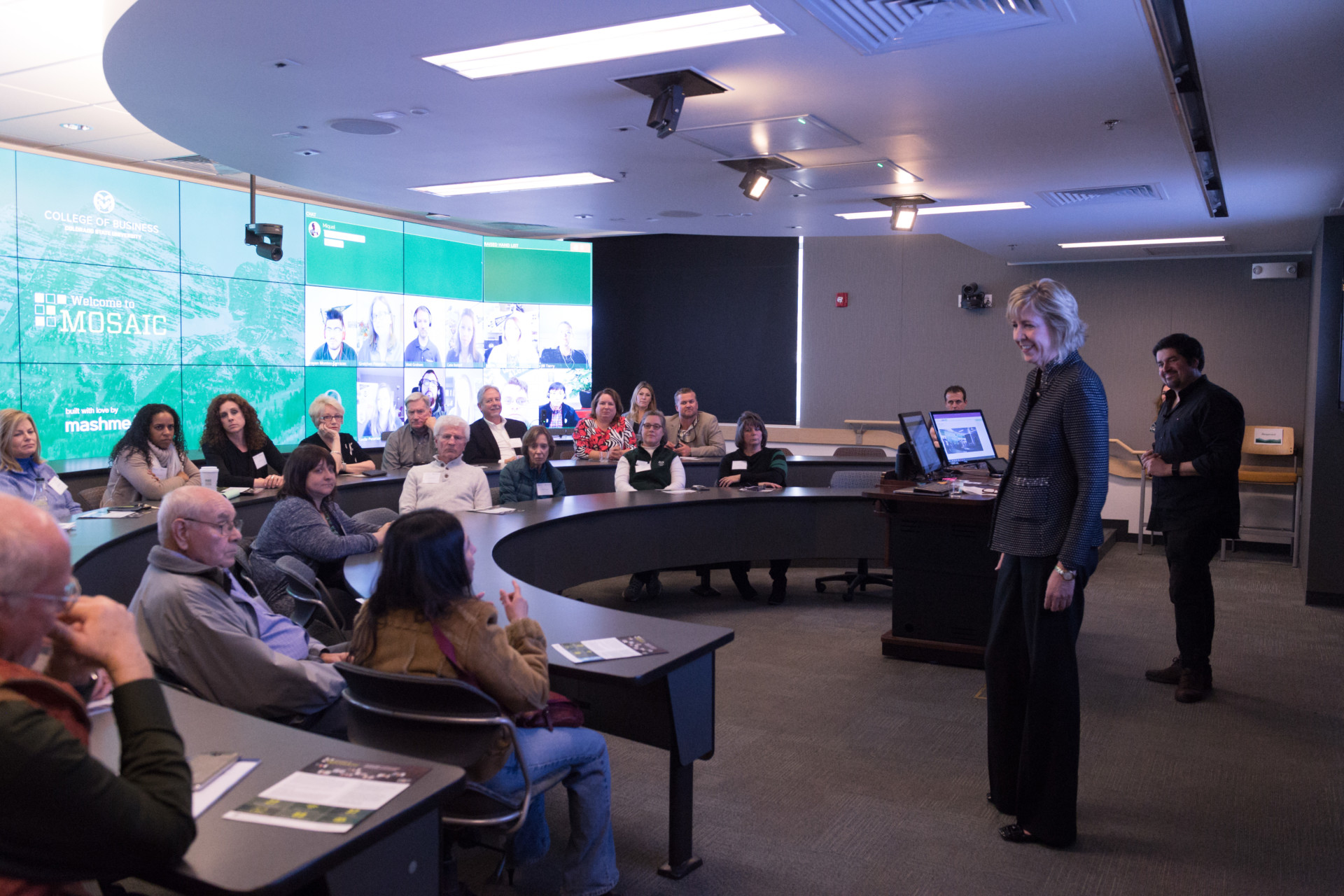 |
| CSU College of Business collaborative classroom. Photo by CSU Photography |
There have been video studios for teaching, for at least the last 50 years, with the advent of the Open University. The best of these look like TV studios. That format may be distracting for academics unused to it. However, for those of us who have put in the hours and done the training in how to produce educational video, this is just part of the job.
The Internet provides new and different ways to provide education. Some of these can be used to reproduce features from older education format, such as the lecture. However, we should try to incorporate the good features, not bad ones.
Education should be designed to cater to the needs of the students, not to make up for inadequacies of the teaching staff. Academics who see themselves as orators to crowds need to be given help to retrain and also overcome the sense of loss of part of their identity. Taking a poor educational format (the large lecture) and making it even poorer online is not an acceptable alternative to good learning design delivered by trained qualified educators.
ps: I suggest this is a quantum leap backwards in education. But in the technical sense of the term quantum: the smallest possible change. ;-)
Wednesday, March 3, 2021
The Best way to Avoid Zoom Fatigue is Not Have a Meeting

As Professor Bailenson notes, "... being on video-conference all day seems particularly exhausting ...". He suggests this is an area for research by social scientists and technologists.
However, I suggest the primary cause of the exhaustion may simply be from spending so much time in video conferencing. In a typical day pre-COVID19, I might attend a couple of face to face meetings. In between the meetings there was at least some break walking from one meeting to another. When I occasionally have had to attend, or chair, all day meetings, I have found this exhausting. Because it is so easy to schedule and attend video meetings, I have found some days in 2020 I go from meeting to meeting without a break. Some conferences which transitioned to online last year acknowledged this and scheduled breaks.
Eye Gaze at a Close Distance
Professor Bailenson identifies Eye Gaze at a Close Distance as a problem, with a video conferencing like staring at a group of people. I haven't noticed this as a problem, perhaps because I frequently have the screen set to display only the speaker, in a small "thumbnail" window. I do this to save on computer CPU and networking resources, but perhaps it also has benefits for the user.
There are other video conference systems which try to mimic a meeting more closely. Remo displays a floor plan with people represented by small icons around tables. When you join a table, you see the video from just the few people around the table. Some systems attempt to provide a perspective view, showing people near you larger than those further away.
Cognitive Load
Professor Bailenson suggests that having to consciously attend to one's visual communication creates extra workload. However, in a face to face meeting I am conscious of the need to be visible to others and appear to be paying attention. This has been a problem when I am taking notes on a computer, but those around me think I am not paying attention and are using the computer for an unrelated task.
An All Day Mirror
As Professor Bailenson notes, Zoom's default option is to display the speaker on screen. I find this reassuring, but he suggests it is stressful. Perhaps one reason it doesn't bother me is that most of the time I have the video camera turned off and a stock image (taken from the same perspective, wearing the same clothes, displayed. I do this to reduce bandwidth use and also enable me to take notes without distracting other participants.
Reduced Mobility
Professor Bailenson suggest video conferencing reduces mobility because the participants need to stay in view of the camera. This is not the case. Video conferencing is available on phones as well as laptops and so can be mobile. It may be that we need features in the video system to encourage people to use this feature, or explicitly encourage them to do so.
Avoid Zoom Fatigue: Don't Have a Meeting
It may be that I suffer less Zoom fatigue because I was a user of low bandwidth video conferencing before 2020. As such I treat the video as an adjunct to the audio, and the audio as an adjunct to the text chat, and the text chat as an adjunct to asynchronous communication.
Those who are used to working primarily via face to face meetings, including those used to teaching this way, find video conferencing the closest alternative available. However, this is not necessarily the best way of working. My approach is to try to get the work done asynchronously, as that save the time and trouble of having a "meeting".
For ten years I was able to run online courses for university students which had no video or audio. Students never saw or spoke to me face to face or online, but were still able to learn and gave good ratings for my teaching. In decades of helping to run the Australian Computer Society I avoided meetings wherever possible, making decisions out of session.
The best way to avoid Zoom fatigue is not through better software design, but by not having fewer meetings.
References
Bailenson, J. N. (2021). Nonverbal Overload: A Theoretical Argument for the Causes of Zoom Fatigue. Technology, Mind, and Behavior, 2(1). https://doi.org/10.1037/tmb0000030
Wednesday, November 18, 2020
Have students provide a photo to help instructors feel good online

One of the basic techniques is to have a profile photo. This appears in a video conference if the camera is off. I use a still image taken by my web camera showing me dressed typically for a video conference with the usual background. When not speaking in a video conference, I suspect than many people don't notice I switch from live video to the still image.
Teachers express frustration about talking to a Zoom screen showing rows of black rectangles. It is tempting to tell students to turn on their cameras, but there are many reasons they may be unwilling or unable to. I use a wireless broadband connection which sometimes can't support video. Sometimes I am in a shared office with people who do not want to be on camera. So I understand why students do not want to turn a camera on.
On a visit to Cambridge University, some years ago, I came across research which suggested people relate to a computer as if it was human, if it has a face. This did not need to be high quality video, a still image, or even a smile face would do :-)
So I suggest that having students include profile photos on their video would help teachers feel they are talking to people. This could be implemented by asking students, or by having the Learning Management System provide the official student photos to the video conference system by default.
Monday, November 9, 2020
EduTECH 2020 On Now

Terrapinn have put a lot of work into replicating their face to face events online and it mostly works. The plenary events online are, in some ways better than being there live: you can see and hear the speaker better in a video conference than in a large hall. Asking questions is much the same (Terrapinn.com) where already using an online system for curating questions face to face. Round-tables also work well online, where there is a celebrity leading a discussion around a table. I have taken part in these live and they work just as well online.

Terrapinn have also tried to facilitate personal meetings online. Participants put in their details and can use the conference system to contact people attending they know, or would like to know. The parts of a conference which don't work as well online are informal contacts and the exhibition. Part of the joy of a conference is running into people you know and being introduced to their colleagues. I am not sure how to reproduce this online. The other joy is wandering the exhibition talking to vendors and having incidental conversations with people who also stopped at the stands. An example is when I found Martin Dougiamas, founder and CEO of Moodle Pty Ltd, at EduTech Asia 2018 in Singapore.
One problem I have noticed with how Terapin have set up the event is that each presentation is in a separate Zoom conference. Unlike a face to face event, there is not the option to simply stay in the room for what is next. There is the option for each participants to build an individual agenda (I have loaded mine into my electronic diary). However, often at a conference I ask those around me what they are going to next, ignoring everything I have circled on the agenda.
Thursday, October 15, 2020
Tuning Zoom Videoconferencing for a Slow computer and Low Speed Broadband
Greetings from the 2020 UQ Work Integrated Learning Symposium, currently on Zoom from Queensland University. This is free and on for four hours, so there may be time for you to join. The students are running the event, which shows commendable dogfooding by UQ.
To improve the performance of Zoom on my slow laptop, and low speed wireless broadband connection, I am trying a router with UDP shaping.
Previously I noticed that with Zoom in full screen mode the sounds would break up and image freeze. If I reduced the window size it worked better, but this was fiddly. Also when a presenter shares their screen, Zoom tends to force the display back to full screen, after which I have to shrink it again.
An approach I tried in the past was to slow my Internet connection, which Zoom responded to by using lower resolution video, making everything more stable. However, this also slowed down all my other network use. There are software utilities which will slow just one application, but I found these did not work with Zoom.
The Internet uses two sorts of data transmission: TCP and UDP. Most applications, such as email and web browsing use TCP, as this provides a reliable connection. Video conferencing programs typically use UDP for the audio and video, as this has less overheads. The utilities I tried to slow an Internet connection only act on TCP, not UDP, so did not slow Zoom.
 |
Zoom is currently providing an image of the speaker at 320 x 180 pixels, 12 frames per second and screen-sharing at 1440 x 900 pixels, 1 frame per second. The screen share looks very clear and readable, with a clear thumbnail of the speaker next to it. If a video is played in the screen sharing it looks jerky, but fortunately most presenters don't play videos.
A bigger test will come this evening, when I am speaking on "The Virtual University" (6pm, all welcome).
ps: One small glitch: after a short break when my computer went to standby mode the router was no longer connected: I had to reboot it.
pps: The video from some speakers was not appearing in Zoom gallery mode. So I increased the down speed from 512 kbps to 1024 kbps. The increased speed also allowed for screen sharing at 1920 x 1080 pixels at 8 frames per second, which is enough to follow a mouse around the screen and simple animation. In speaker's view the video is now at 640 x 360 pixels 26 frames per second. However, this is using too much of the limited CPU in my computer, so I will try setting up and down speeds to 800 kbps.
ppps: Had problems with the TP-Link TL-MR3020 router, so changed it for the desktop version, a TL-MR3420, which is working well.
Tuesday, August 4, 2020
Ask Zoom for a Low Bandwidth Option
Back in March I suggested to Zoom, they add a low bandwidth option which the participant can switch on (request #3204325, priority "high", 26 March). The
documentation says screen sharing with video thumbnail is possible at
50-150kbps, but I could not get that to work, even when I shaped my
network connection to that speed. As well as allowing to user to
activate this manually, I asked Zoom to adjust their system so it came on
automatically, sooner. Since then I have experimented with how to reduce the bandwidth Zoom uses, so it works better on slow links, particularity wireless ones. But there are many people who still have difficulties. On 4 August, Zoom replied to say my suggestion had been added to their feature request list. But it took Zoom four months to reply, so they don't seem to be in a hurry to implement this. If you think it is a good idea, please tell Zoom.
Subscribe to:
Posts (Atom)