Showing posts with label polarizing filter. Show all posts

Sunday, September 26, 2021

Stop Glasses Reflecting Screen During Video Conference

A problem for those of us who wear spectacles is reflections from the screen showing up in a video conference. Three ways I have found to reduce this are: a polarizing filter, custom spectacles, and a dark theme.

1. Polarizing Filter


An LCD screen uses polarized light to produce images. So a polarized filter over the web camera can block reflections from the screen. The clip-on lens kit I purchased has a polarizing filter, but this was not designed to be used in conjunction with the zoom lens. So I unscrewed the ring holding the polarizing filter in place and inserted it in under the zoom lens. This greatly reduces reflections. Those using DSLR cameras as web cameras will be able to purchase polarizing filters for these. 

2. Custom Spectacles

My optometrist (Andrew Watkins) is making me a custom pair of multi-focal spectacles for video conferences (computer glasses, or "Zoom-Specs"). The standard ones work reasonably well with a computer screen, but I have to tilt my head up slightly. This becomes uncomfortable, and increases the screen reflections.  It is also not an attractive look. The custom spectacles have the center section of the visual field set for my normal computer screen reading distance, and also an anti-reflective coating, to reduce screen reflections. Being multi-focal, there is still an area at the bottom for seeing close up, and at the top for seeing long distances. So these glasses can be worn around the office, or home, but are not suitable for driving.

3. Dark Theme

In addition, I have found that a dark theme on the computer desktop helps. This has a black background with white text, so the screen emits much less light. How this is set varies between operating systems, and browsers. 

Zoom will go to dark theme, when this is set in the Microsoft Windows, or Apple OS operating systems. However, this doesn't happen with Linux (which I use), or with Android. I have suggested Zoom fix this. It could be rectified by having Zoom follow the operating system theme, or if that is not possible, add a manual setting. Or, Zoom could simply decide to make a dark theme the default for the Android and Linux versions.

Saturday, July 24, 2021

Lighting for Video Conferences

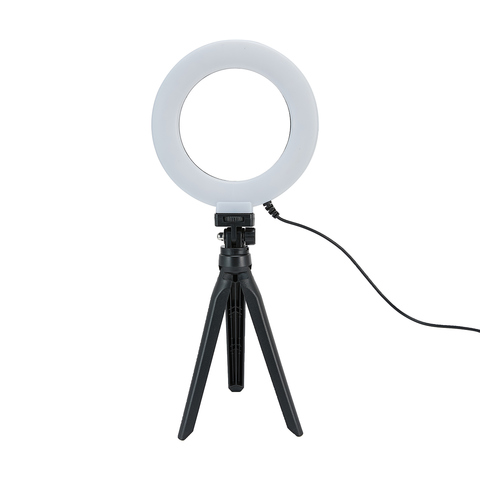
6in. Tabletop Selfie Ring Light

 When using a virtual background with video conferencing, it is important to have even lighting, otherwise part of you may be chopped off, or the real background visible. Any office lamp will do, but there are ring lights available specially for this purpose. The ring lights have a circle of LED lights,and are designed to go around the camera lens.  I find it too distracting to be looking directly into the light, so instead have it at 45% pointing at the wall, behind my computer screen. This reflects a soft light onto the background.

Power-bank with light
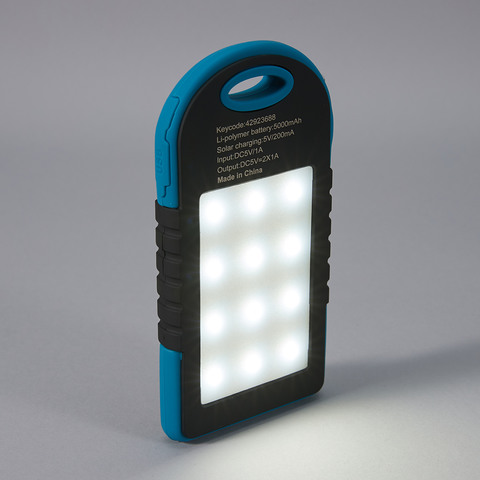
Ring lights are available in different sizes with clamps, and stands. Some also have a clamp for a smart phone (and are called "selfie lights). The one I have has a desktop tripod and can be rotated and swiveled. It cost $8 from a local store and plugs into a USB power supply. For portable use, away from mains power, I also have a power-bank, with a built in flood light and USB sockets for ring lights ($19 from a local store). 

Telephoto Lens for Closeup in Zoom Meetings

2x telephoto lens & virtual background in Zoom. 
Tom Worthington, 24 July 2021 CC BY
Web cameras tend to have a wider field of view, than needed for one person attending a video conference. This makes the camera easy to set up, but shows more of the background and less of the speaker. My Logitech C615 webcam has a 74-degree field of view. So I purchased a 2x Telephoto clip on lens.

The clip-on lens is designed for use with a smartphone camera, but works well with the camera in a laptop or stand-alone web camera. The lens is screwed onto what looks like a clothes peg, which is clipped over the camera. It takes some effort to position, but is then held firmly.

198 Degree Fish-eye Lens, 
Tom Worthington,
24 July 2021, CC BY
With Polarizing Filter, 
Tom Worthington
24 July 2021, CC BY
I purchased a kit*, which came with fish-eye, wide, and macro lenses, as well as a polarizing filter. The fish-eye or wide-angle lenses might be of use for showing the general view of a room, but distort the image. The polarizing filter is useful for removing reflections from my glasses, however it can't be used in conjunction with the telephoto lens.

Without telephoto lens.
Tom Worthington,
24 July 2021 CC BY

With 2x Telephoto Lens. 
Tom Worthington
24 July 2021 CC BY
As well as narrowing the view, so less of the room is visible, the telephoto lens also makes the background slightly out of focus. This is useful for concentrating the viewer's attention on you in the foreground. Otherwise they might spend their time reading the titles of the books in your bookcase. ;-)

The narrower view also allows a smaller green screen to be used for a virtual background. In the example shown, I am using a sheet of lime green polyester acoustic pin-board, 1200 mm x 800 mm ($30.50 from a hardware store). 

Most of the clip on lenses sold for smart phone are wide angle. It took me some time to find a telephoto. One online store sent me a wide angle instead of a telephoto. So for the first time, in a long time, I went into a camera store. The kit I purchased is an Apexel 5 in 1 Clip on Lens Kit ($19.95 from Ted's Cameras, Canberra Center). Note that you will only need a 2x telephoto lens and there are higher quality units available separately at a higher price.