 |
| Screenshot from AI, ML & Friends Seminar, |
Showing posts with label Zoom. Show all posts
Showing posts with label Zoom. Show all posts
Thursday, September 15, 2022
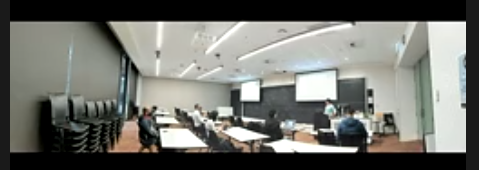
Wide Angle View of Hybrid Classroom

Sunday, August 21, 2022
Delays in Live Streamed Video Can Cause Problems for Clicker Quizzes
 |
| Livia Lam, & Tom Worthington, hosting the Govhack 2022 Trivia, still from livestream, 20 August 2022 |
Myself and the co-host were on Zoom, which was relayed to a Facebook live stream. The participants used a QR code to get to the software asking the questions. One problem was the delay of several seconds between us speaking, and when we were heard. The application used for the questions did not have the delay, so the questions we were reading out were after the participants had already answered. The delay was longer than just with Zoom, as the video then had to go via Facebook's system. Perhaps the makers of the quiz system could build a delay into it.
Thursday, July 7, 2022
Desktop smartphone holder for webinars

Tuesday, October 19, 2021
Fluorescent Green Screen Version 3
Unhappy with the finish with fluorescent poster paint on my green screen for a virtual Zoom background, I decided to go back to using wall paint. Previously I did not find anyone in a paint shop in Canberra who knew what "chroma key green" was. But Bunnings Belconnen in Canberra had no problem. They selected "Chroma Key Green" from the Dulux corporate colors library, and made from a 250 ml sample pot of British Paints Extra Deep (tinted DD 0Y 43 SS 0Y 5). For the other side of the screen I used Taubmans "Hi-C Blue" (no mixing required).
Saturday, October 16, 2021
Web Camera with Zoom Lens for Zoom

The camera sensor is housed in a very rugged, small black metal box, with a standard camera mount thread on both the top and bottom. The lens has screws to lock the focus and zoom in place once set. This is not a camera for live action, as it is difficult to focus, but one you set up, lock in place and leave. The camera has a USB plug, and operates as any other web camera. Similar products are offered on Amazon.
When the COVID-19 pandemic stuck last year I had to set up my home office for teaching by video-conference. However, I decided I should not have anything out of reach of a typical teacher, or student, as education should be accessible to everyone. So I used a low cost, low speed broadband connection, a modestly priced laptop, and a consumer grade web camera. This worked fine, especially with Zoom. However, I decided it was time for an upgrade.
Sunday, October 3, 2021
Fluorescent Green Screen for Virtual Zoom Background
 |
| Fluorescent Green Screen |
 |
| Image added to green screen |
Sunday, September 26, 2021
Stop Glasses Reflecting Screen During Video Conference
A problem for those of us who wear spectacles is reflections from the screen showing up in a video conference. Three ways I have found to reduce this are: a polarizing filter, custom spectacles, and a dark theme.
An LCD screen uses polarized light to produce images. So a polarized filter over the web camera can block reflections from the screen. The clip-on lens kit I purchased has a polarizing filter, but this was not designed to be used in conjunction with the zoom lens. So I unscrewed the ring holding the polarizing filter in place and inserted it in under the zoom lens. This greatly reduces reflections. Those using DSLR cameras as web cameras will be able to purchase polarizing filters for these.

1. Polarizing Filter
An LCD screen uses polarized light to produce images. So a polarized filter over the web camera can block reflections from the screen. The clip-on lens kit I purchased has a polarizing filter, but this was not designed to be used in conjunction with the zoom lens. So I unscrewed the ring holding the polarizing filter in place and inserted it in under the zoom lens. This greatly reduces reflections. Those using DSLR cameras as web cameras will be able to purchase polarizing filters for these.
2. Custom Spectacles
My optometrist (Andrew Watkins) is making me a custom pair of multi-focal spectacles for video conferences (computer glasses, or "Zoom-Specs"). The standard ones work reasonably well with a computer screen, but I have to tilt my head up slightly. This becomes uncomfortable, and increases the screen reflections. It is also not an attractive look. The custom spectacles have the center section of the visual field set for my normal computer screen reading distance, and also an anti-reflective coating, to reduce screen reflections. Being multi-focal, there is still an area at the bottom for seeing close up, and at the top for seeing long distances. So these glasses can be worn around the office, or home, but are not suitable for driving.
3. Dark Theme
In addition, I have found that a dark theme on the computer desktop helps. This has a black background with white text, so the screen emits much less light. How this is set varies between operating systems, and browsers.
Zoom will go to dark theme, when this is set in the Microsoft Windows, or Apple OS operating systems. However, this doesn't happen with Linux (which I use), or with Android. I have suggested Zoom fix this. It could be rectified by having Zoom follow the operating system theme, or if that is not possible, add a manual setting. Or, Zoom could simply decide to make a dark theme the default for the Android and Linux versions.
Thursday, July 29, 2021
Real-time Online Team Formation with 200 Students
 |
| Gather Town |
Before COVID-19 closed the campus in 2020, a large flat floor classroom was used for team formation. The clients would stand around the walls, next to posters. The master of ceremonies would walk up to each client in turn and hand them a microphone. Then students would walk to the client they were interested in and stick a post-it note with their details to the poster. In 2020 this was moved online, first using Zoom and Slack.
 |
| Remo Conference |
To emulate the physical room, Remo Conference was used for some Techlauncher events. This time Gather Town is being used. Like Remo, Gather shows a two dimensional floor plan or map. Each participant is represented by an avatar. The topics are represented by tables. Participants move themselves to the topic they are interested in, then can talk to those at the table using video, audio and text chat.
Gather has a chunky 1980s video game look. You navigate your character around using the keyboard like a video game. I prefer Remo's approach where the mouse can be used to move. For the team-building exercise participants were asked to color code their characters, like the crew on the flight deck of an aircraft carrier. As teaching staff, I was yellow (the color reserved for aircraft directors).
With more than one hundred users, it was impressive the application worked. There were repeated "disconnected" messages, but then automatic re-connection. Video and audio worked fine, which is also impressive on my slow, high latency wireless broadband.
While Gather seemed to work, I found the interface, with avatars continually moving in all directions very distracting. It took several attempts for me to be able to cope with Remo's chaotic layout, and it might be the same with Gather. However I suggest there should be the option of a simplified interface suitable for mobile devices and those on low bandwidth connections, similar to Slack, as an alternative. There may be scope for building these type of interfaces on top of Slack and similar text based systems.
Saturday, July 24, 2021
Lighting for Video Conferences
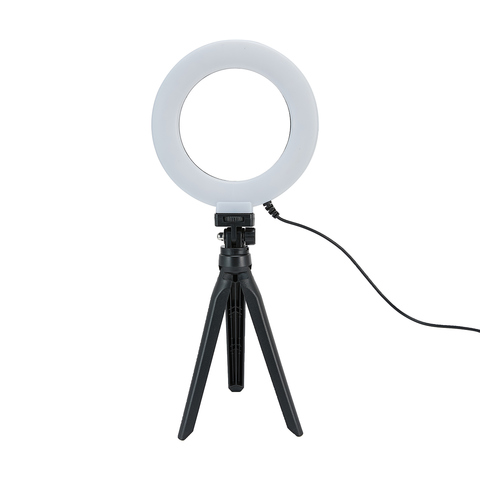 |
| 6in. Tabletop Selfie Ring Light |
When using a virtual background with video conferencing, it is important to have even lighting, otherwise part of you may be chopped off, or the real background visible. Any office lamp will do, but there are ring lights available specially for this purpose. The ring lights have a circle of LED lights,and are designed to go around the camera lens. I find it too distracting to be looking directly into the light, so instead have it at 45% pointing at the wall, behind my computer screen. This reflects a soft light onto the background.
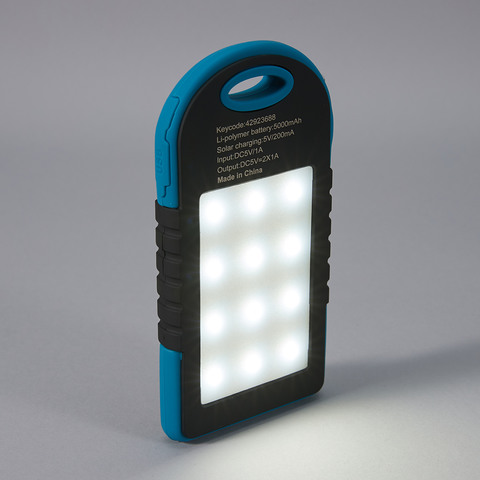 |
| Power-bank with light |
Telephoto Lens for Closeup in Zoom Meetings
 |
| 2x telephoto lens & virtual background in Zoom. Tom Worthington, 24 July 2021 CC BY |

 |
| 198 Degree Fish-eye Lens, Tom Worthington, 24 July 2021, CC BY |
 |
| With Polarizing Filter, Tom Worthington 24 July 2021, CC BY |
 |
| Without telephoto lens. Tom Worthington, 24 July 2021 CC BY |
 |
| With 2x Telephoto Lens. Tom Worthington 24 July 2021 CC BY |
The narrower view also allows a smaller green screen to be used for a virtual background. In the example shown, I am using a sheet of lime green polyester acoustic pin-board, 1200 mm x 800 mm ($30.50 from a hardware store).
Most of the clip on lenses sold for smart phone are wide angle. It took me some time to find a telephoto. One online store sent me a wide angle instead of a telephoto. So for the first time, in a long time, I went into a camera store. The kit I purchased is an Apexel 5 in 1 Clip on Lens Kit ($19.95 from Ted's Cameras, Canberra Center). Note that you will only need a 2x telephoto lens and there are higher quality units available separately at a higher price.
Friday, July 23, 2021
Folding Lilac Screen for Virtual Zoom Background
The second hand folding room divider
Lilac folding screen, in Zoom
with virtual background.
Vertical fold lines visible.
Photo by Tom Worthington,
23 July 2021 CC BY
, I painted blue for virtual backgrounds, was too dark to work well with Zoom. So I went back to the paint shop and had a lighter shade made up. This was intended to be a bright blue, and the hex code for the color looks blue on screen (#0061FF). However, the paint looks more Lilac, but works well with Zoom.
Lilac folding screen,
vertical fold lines visible.
Photo by Tom Worthington,
23 July 2021 CC BY
 |
| QR Code for Bright Blue #0061FF from Taubmans Coloursmith |
Tuesday, July 20, 2021
Folding Blue Screen for Under $20
 |
| Blue folding screen, with vertical fold lines. Photo by Tom Worthington, 20 July 2021 CC BY |
 |
| QR Code for blue, from the Taubmans Coloursmith application |
 |
| Blue |
 |
| Blue folding screen, in Zoom with virtual background. Vertical fold lines visible. Photo by Tom Worthington, 20 July 2021 CC BY |
 |
| QR Code for Bright Blue #0061FF from Taubmans Coloursmith |
The literature points out that a blue screen will need more light than a green screen. But it may be that a less dark shade of blue would work better in an office, where studio lighting is not available. The lightest possible shade of this would be #0061FF. Another option would be the "Hi C Blue" (#0174b3) which is one of the standard colors of the Taubmans range.
 |
| Green |
 |
| QR Code for green, from the Taubmans Coloursmith application |
Saturday, July 17, 2021
Folding Green Screen for Under $20
 |
| Green folding screen, with two vertical fold lines. Photo by Tom Worthington, 17 July 2021 CC BY |
 |
| Green folding screen, with virtual background. Fold lines are hidden by Zoom. Photo by Tom Worthington, 17 July 2021 CC BY |
This screen is only 1200 mm wide and has to be so close to fill the view, it is a bit cramped in front. I could use a camera with a narrower field of view, but a screen with four, rather than three 400 mm panels would be more practical.
I am considering painting the other side of the screen with chroma key blue. An alternative is to leave it with a decorative pattern, so I can put the screen in front of the desk when not in use so the room looks less like an office.
Virtual Graduation Cermonies
 | |
| CECS graduates contest (video), ANU 2021 |
 |
| Standing in front of green screen |
There are, of course, reputation risks with virtual graduations. If the video was made widely available, Eric worried some student would paste me into a war zone or zombie attack. But then when working at the Department of Defence I helped prepare for the end of the world on 1 January 2000, not unlike a zombie attack. Also in a borrowed uniform I went on an exercise with the US Navy and so would not look out of place in a war zone.
What worried me more is the possibility of a non-graduate using the video to help build evidence around a fake degree. The ANU is one of a few universities which now issue digital certificates to graduates and has an online facility to check if someone actually graduated.
There are technical ways to counter fake photos, for example, applying a digital signature to the images and video. As it happens Dr Sabrina Caldwell, is an expert in detecting fake photographs and is on the JPEG committee.
Universities should be cautious about using "security by obscurity". Placing a photo online and then telling hundreds of people the web address is not a good form of security.
Tuesday, July 6, 2021
$13 Green Screen for Video Conferences
To get a better Zoom virtual background, I purchased a 2 x 3 m photographic backdrop sheet, online for $12.99 (including postage). This is chroma key green colored, almost the same as the $4 sheet of apple green cloth I purchased from a local store. The professional cloth has the advantage that it is twice the width and so when hung landscape mode is the right size for a video conference backdrop.
The sheet came with four clips and wall anchors to hang it. I used the clips to secure the sheet over a freestanding folding room divider. about 150 mm behind my chair. With the ends of the screen curved in slightly on each side, this fills the view from my screen mounted web camera.
The sheet requires even soft light. Direct sunlight, or a spotlight will cause bright patches, and shadows which the virtual background setting can't handle. I was a little disappointed that the sheet did not have a loop sewn in one side so a pole could be passed though it, as depicted in advertisement. A bed sheet with a sewn edge, which a pole can be threaded through to hang it, might be a better option.
There are many types of Chroma key color cloth offered for sale online. Check the size, as these tend to be advertised showing the larger 2 x 3 m sheet I purchased, but with the price of a smaller 1 x 1.6 m option. Also the sheets are shown on specially designed stands held with clips. However the stands are not normally included in the price and the clips may not be either.
Monday, June 28, 2021
A $4 Green Screen for Zoom Background
 |
| Tom Worthington in chroma key body suit, without hood, so just face shows |
 |
| Tom Worthington in chroma key body in front of green screen |
This techniques is called Chroma key, where a specific color in an image is replaced with another image. While any color works, there are two standard ones used in the video industry, a bright green and a bright blue. If you use the standard colors, you can use props which match and will disappear into the background. An extreme example is having a person disappear.
 |
| Tom Worthington in chroma key body suit with hood covering face |
 |
| Tom Worthington using the green screen in normal clothes |
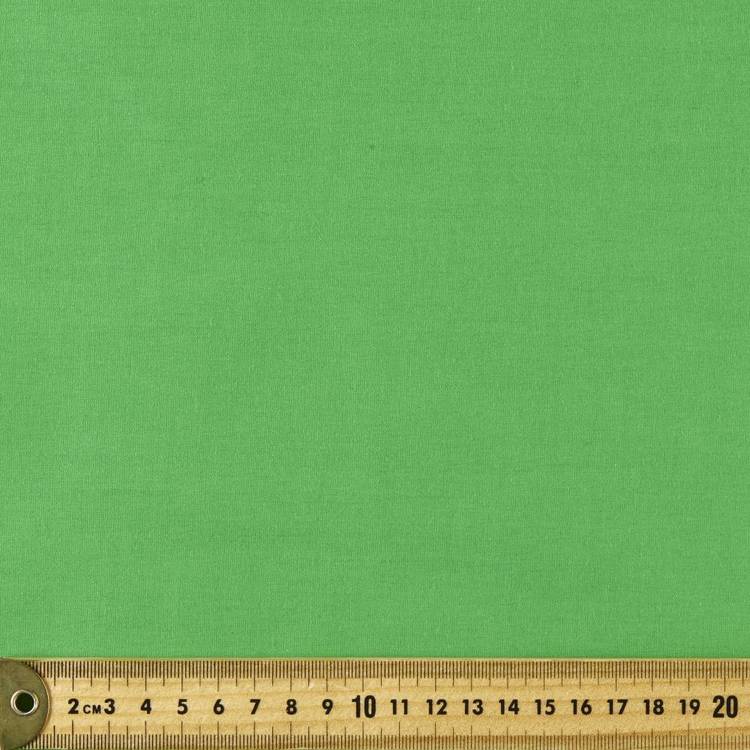 |
| Apple colored Top Pop Poplin cloth, from Spotlight |
Wednesday, June 23, 2021
Stanford University Computer Science Zoom Class a Quantum Leap Backwards
 |
| Stanford University's large scale Zoom class |
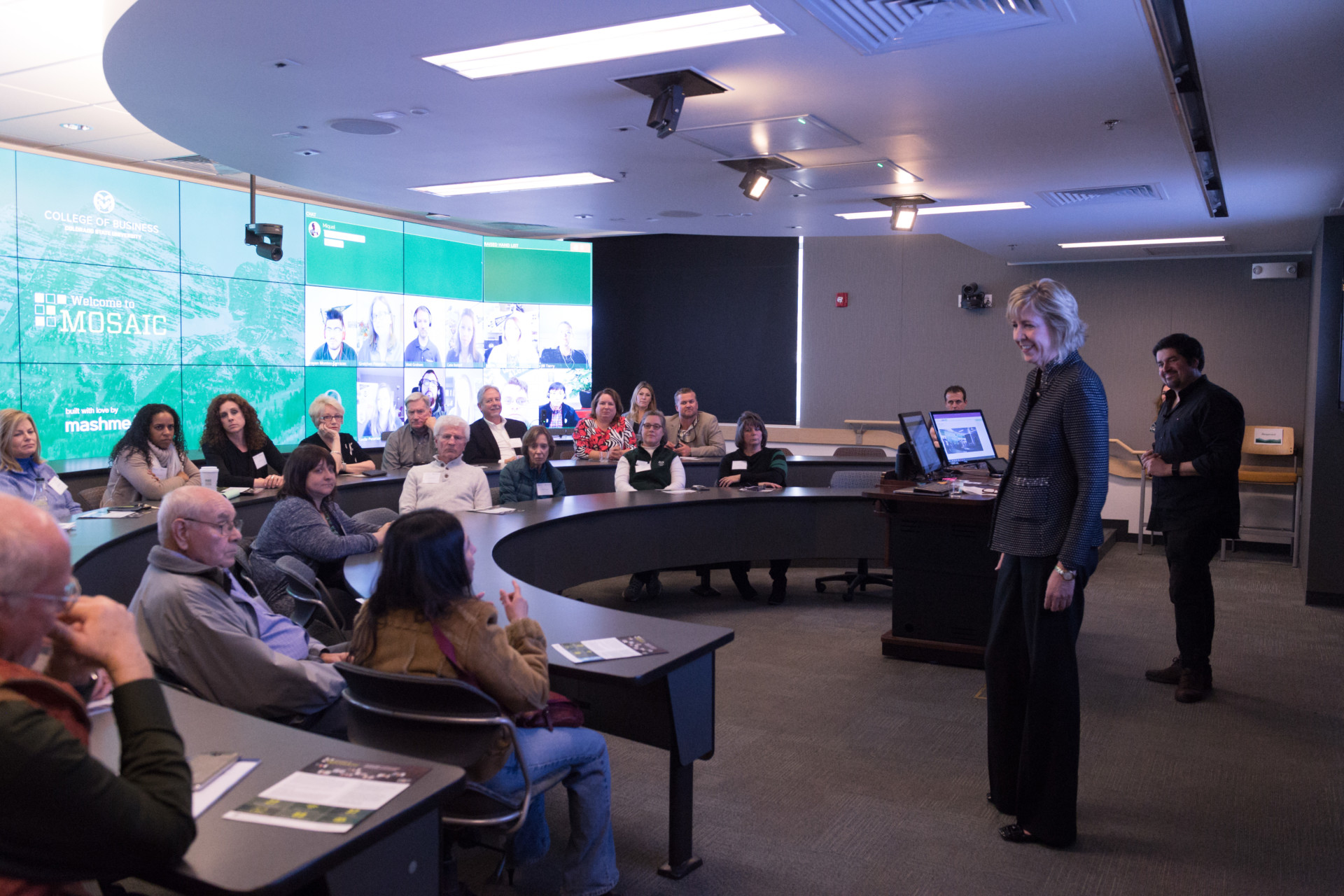 |
| CSU College of Business collaborative classroom. Photo by CSU Photography |
There have been video studios for teaching, for at least the last 50 years, with the advent of the Open University. The best of these look like TV studios. That format may be distracting for academics unused to it. However, for those of us who have put in the hours and done the training in how to produce educational video, this is just part of the job.
The Internet provides new and different ways to provide education. Some of these can be used to reproduce features from older education format, such as the lecture. However, we should try to incorporate the good features, not bad ones.
Education should be designed to cater to the needs of the students, not to make up for inadequacies of the teaching staff. Academics who see themselves as orators to crowds need to be given help to retrain and also overcome the sense of loss of part of their identity. Taking a poor educational format (the large lecture) and making it even poorer online is not an acceptable alternative to good learning design delivered by trained qualified educators.
ps: I suggest this is a quantum leap backwards in education. But in the technical sense of the term quantum: the smallest possible change. ;-)
Saturday, May 22, 2021
Microsoft Teams Meetings on the Move
For the last year and a half Zoom has been my go-to video conferencing application. But some organisations prefer Microsoft Teams. The biggest problem I have found with Teams is security: it is too good. For those who use Teams with just one organisation that is fine, but I have difficulty moving from one Microsoft account to another. I log out of the Microsoft account at one organisation to log into another, but Microsoft logs me straight back into the same one. So far I have found no solution to this problem.
Something which does work well is Teams on a smart phone, but this takes a little more effort than Zoom. In Zoom, you can activate "Safe Driving Mode", which mutes the microphone and video, so you will not be distracted. This has the added benefit of greatly reducing the data use, as video is not transmitted to the phone. I haven't found a similar mode in Teams, but outgoing audio and video is muted by default (remember to provide a profile photo, to give people something to look at). There is also an option to turn off incoming video (something I have not found on Zoom).
Even with incoming video turned off, you will still see presentation slides in Teams. I found this reduces bandwidth use to about 90 kbps. But for driving you don't want this distraction. What I do is put the text chat on screen. That is usually less dynamic and after a minute my phone blanks the screen anyway, just leaving the audio. This also reduces the data use to about 7 kbps. It also helps to put the audio through the car speakers, so the sound is not coming from the phone.
It may seem odd, to want to attend a video conference with no video, no presentation visuals, and only one way audio, but it can be liberating. Because you can't see anything and can't respond, you have to listen to what is being said. You have to make a mental note of anything to respond to later.
ps: Another option for an audio only conference is to dial in by phone. Zoom supports this, with the app able to dial your phone for you, and insert the meeting, access code, and password. Teams goes one further and will call you. However, those organizing the conference have to enable these features. The last Zoom conference I attended did not have the password included for dial-in and the last Teams meeting would not call Australian phone numbers.
Wednesday, March 3, 2021
The Best way to Avoid Zoom Fatigue is Not Have a Meeting

As Professor Bailenson notes, "... being on video-conference all day seems particularly exhausting ...". He suggests this is an area for research by social scientists and technologists.
However, I suggest the primary cause of the exhaustion may simply be from spending so much time in video conferencing. In a typical day pre-COVID19, I might attend a couple of face to face meetings. In between the meetings there was at least some break walking from one meeting to another. When I occasionally have had to attend, or chair, all day meetings, I have found this exhausting. Because it is so easy to schedule and attend video meetings, I have found some days in 2020 I go from meeting to meeting without a break. Some conferences which transitioned to online last year acknowledged this and scheduled breaks.
Eye Gaze at a Close Distance
Professor Bailenson identifies Eye Gaze at a Close Distance as a problem, with a video conferencing like staring at a group of people. I haven't noticed this as a problem, perhaps because I frequently have the screen set to display only the speaker, in a small "thumbnail" window. I do this to save on computer CPU and networking resources, but perhaps it also has benefits for the user.
There are other video conference systems which try to mimic a meeting more closely. Remo displays a floor plan with people represented by small icons around tables. When you join a table, you see the video from just the few people around the table. Some systems attempt to provide a perspective view, showing people near you larger than those further away.
Cognitive Load
Professor Bailenson suggests that having to consciously attend to one's visual communication creates extra workload. However, in a face to face meeting I am conscious of the need to be visible to others and appear to be paying attention. This has been a problem when I am taking notes on a computer, but those around me think I am not paying attention and are using the computer for an unrelated task.
An All Day Mirror
As Professor Bailenson notes, Zoom's default option is to display the speaker on screen. I find this reassuring, but he suggests it is stressful. Perhaps one reason it doesn't bother me is that most of the time I have the video camera turned off and a stock image (taken from the same perspective, wearing the same clothes, displayed. I do this to reduce bandwidth use and also enable me to take notes without distracting other participants.
Reduced Mobility
Professor Bailenson suggest video conferencing reduces mobility because the participants need to stay in view of the camera. This is not the case. Video conferencing is available on phones as well as laptops and so can be mobile. It may be that we need features in the video system to encourage people to use this feature, or explicitly encourage them to do so.
Avoid Zoom Fatigue: Don't Have a Meeting
It may be that I suffer less Zoom fatigue because I was a user of low bandwidth video conferencing before 2020. As such I treat the video as an adjunct to the audio, and the audio as an adjunct to the text chat, and the text chat as an adjunct to asynchronous communication.
Those who are used to working primarily via face to face meetings, including those used to teaching this way, find video conferencing the closest alternative available. However, this is not necessarily the best way of working. My approach is to try to get the work done asynchronously, as that save the time and trouble of having a "meeting".
For ten years I was able to run online courses for university students which had no video or audio. Students never saw or spoke to me face to face or online, but were still able to learn and gave good ratings for my teaching. In decades of helping to run the Australian Computer Society I avoided meetings wherever possible, making decisions out of session.
The best way to avoid Zoom fatigue is not through better software design, but by not having fewer meetings.
References
Bailenson, J. N. (2021). Nonverbal Overload: A Theoretical Argument for the Causes of Zoom Fatigue. Technology, Mind, and Behavior, 2(1). https://doi.org/10.1037/tmb0000030
Saturday, November 28, 2020
Mobile Learning Special Interest Group
The ASCILITE Mobile Learning Special Interest Group has produced an eight minute video to explain what they do for the ASCILITE 2020 Conference next week. This was made in one take via Zoom. It is a bit more lively that the version I made by pasting the text from the website into a text to speech system:
Subscribe to:
Posts (Atom)