One great advantage over earbuds is that the controls are not, touch sensitive, and can be located with touch. Unlike ear buds I can yank the SoundPEATS off with one hand, and stuff them in a pocket. A bonus is the SoundPEATS work very well for Zoom calls, being relatively inconspicuous from the front.
Saturday, March 9, 2024
SoundPEATS RunFree Lite Open Ear Headphones for Webinars
Thursday, September 2, 2021
Low Cost Home Office Webinar Setup
I use a low cost laptop ($500) plugged into a 24 inch monitor (second hand $100). Internet access is provided by a 4G wireless modem ($50 plus $15 a month for access), plugged into a router configured to limit bandwidth ($100).
Behind the monitor is a web-camera (under $100) with a clip on telephoto lens (under $20). The camera is on a telescopic tripod, so I can push it down out of sight behind the monitor, when not in use (and so it can't see me). I appear in front of a folding green screen (second hand $10, plus $5 for green paint). There is a sound absorbing pin-board behind the monitor, which can also b used as a green screen ($30).
Under the desk is an Uninterruptible Power Supply (UPS) , in case mains power is lost (UPS $10 secondhand, new battery $50).
Beside the monitor is a ring light for better illumination ($10) and my smartphone ($500). I dial-in to the video conference to provide a more reliable audio channel, and as a backup in case the power, laptop or primary Internet connection fails. Also I can monitor how well the audio and video is received using the phone.
I have an ergonomic chair to provide comfort (free second hand). The blood-pressure monitor is just to remind me how stressful online learning can be. ;-)
For a more advanced setup, see Nicolo Malagutti's "A bespoke audio-visual set-up" (2021).
Monday, June 28, 2021
A $4 Green Screen for Zoom Background
| Tom Worthington in chroma key body suit, without hood, so just face shows |
| Tom Worthington in chroma key body in front of green screen |
This techniques is called Chroma key, where a specific color in an image is replaced with another image. While any color works, there are two standard ones used in the video industry, a bright green and a bright blue. If you use the standard colors, you can use props which match and will disappear into the background. An extreme example is having a person disappear.
| Tom Worthington in chroma key body suit with hood covering face |
| Tom Worthington using the green screen in normal clothes |
![]() |
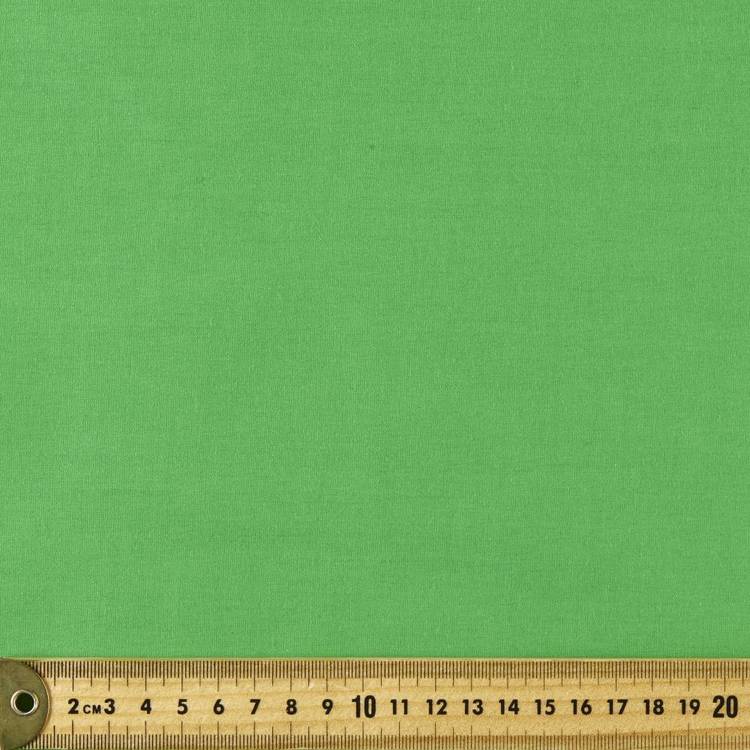
| Apple colored Top Pop Poplin cloth, from Spotlight |
Thursday, January 21, 2021
Temporary Webinar Studio
The mattress is queen size and resting on two chairs. The chair I sit on is between them. This keeps the mattress in place and also curves it slightly, providing extra absorption of background noise from the side. I use a headset microphone to further reduce noise.
This worked fine for the first webinar in my new series "Engaging students in the online environment" in the Microlearning Series at Maskwacis Cultural College, Canada.
There are specially designed booths used for podcasting from offices, using sound absorbent foam. However, a simpler setup, with an acoustic panel of the type used for office partitions, curved and mounted on wheels might work well in a shared office.
Tuesday, March 24, 2020
Use Recorded Videos and Small Online Tutorials
Video conference systems, such as Zoom, allow for hundreds of students to take part in an online interactive events (Webinar). During the event the class can be divided into smaller groups, to work on a task for a few minutes, then the class brought back togehter. This is an excellent teaching method, however, it places demands on the technology, and staff which may be too much due to the COVID-19 Coronavirus. There is likely to be very high utilization of videoconferencing, straining resources. Also large complex real-time events are harder to organize.
Thursday, February 6, 2020
Live Video for Tutorials and Laboratory Sessions Remotely
These tools do much the same thing. You use a web browser, or downloaded app to send live video from a web camera, and whatever is on your computer screen to students. The students can use a text chat window to reply. There can also be quizzes. All of this can be recorded for later replay. Students can also talk, be seen, and perhaps send what is on their screen, but that gets complicated), especially for large classes. You will want to at least have a moderator to look after the chat, while someone else does the talking.
I suggest using these synchronous tools sparingly, as a supplement to asynchronous online learning. That is, students should be able to watch a recorded video, read some notes, do some sort of exercise step, by step, in their own time. There can then be some synchronous (real-time) activities to help them.
What also helps are activities to connect students to each other online and carefully worded announcements from staff, to the class, to give the sense someone is out there. This is all part of the conventional approach developed for distance education over the last few decades.
The "Learning to Reflect" module I designed is an example of this approach. The students read the notes, watch the videos, do the quizzes, post to forums, and reply to other students, before the live part. The student gets all the notes at the start of the course. There are also suggested regular posts for the tutor.
Sunday, October 22, 2017
Use an external microphone for podcasts and webcasts from smartphone
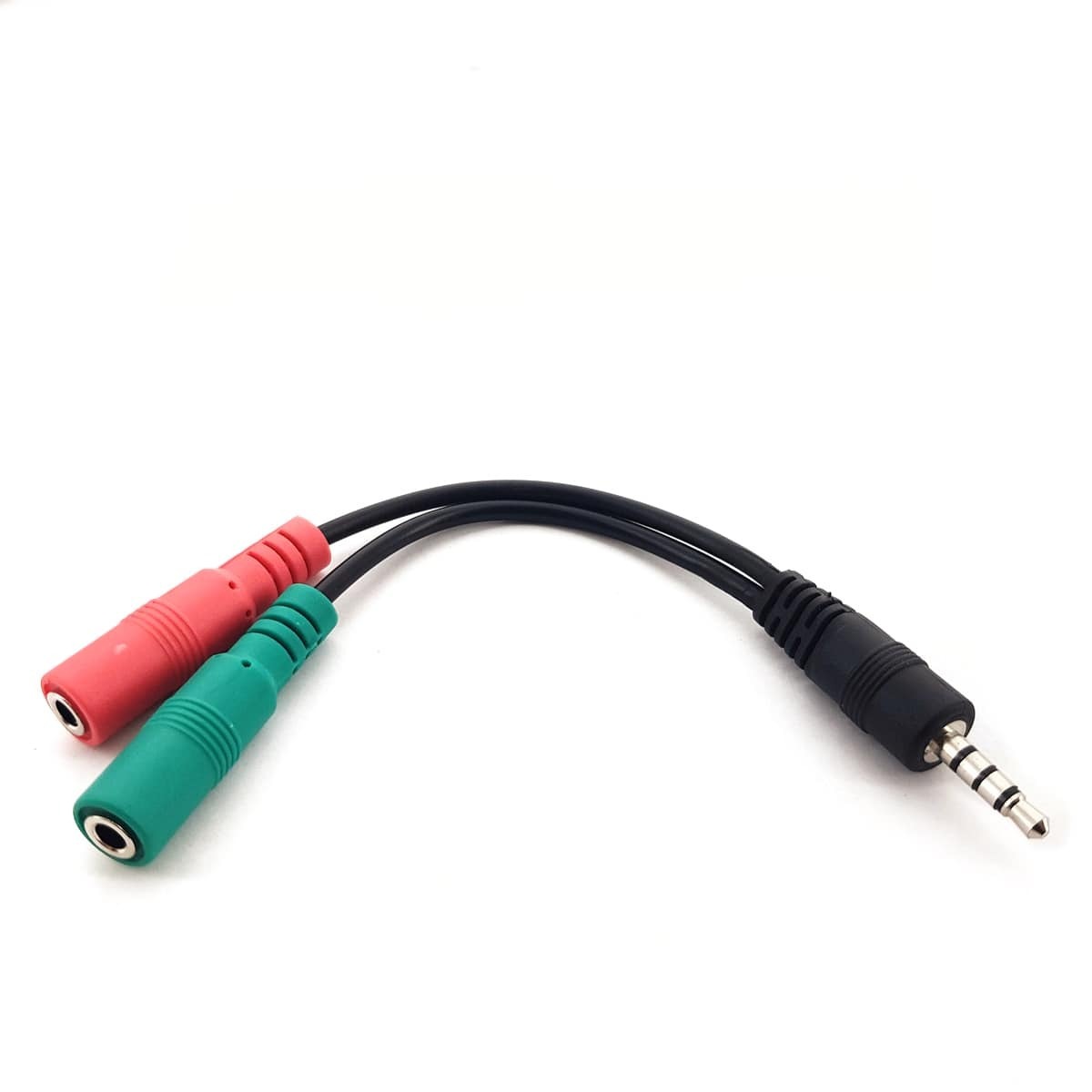
I tried soldering my own adapter from plugs, sockets and cable, but I ended up with a short-circuit and burnt fingers. The "3.5mm TRRS Smartphone - Mic and Headphone Splitter" from Swamp Industries in Canberra was cheaper than the parts and actually worked. The only problem with the Swamp unit is that it has a volume control for the audio output. There is no indicator on the volume control, so it s easy to set it to minimum and wonder why there is no sound. Similar units are available from electronics stores and Amazon, without volume controls.
Thursday, September 14, 2017
Are Students Paying Attention in the Virtual Classroom?
- How can teachers design content and/or activities to encourage interaction, engagement and attention while participating in a VC? The answer was ‘planning’ and structuring of sessions. Many of the suggested ways suggested for improving virtual classrooms I suggest are also applicable to face-to-face classes.
- What training, guides and support do VET teachers and learners require to provide an environment that supports learners in the VC? Professional development in virtual classroom techniques was suggested for teachers. Curiously what was not suggested was for the teacher to first participate as a student in a virtual class (I found this very useful) or to have formal training or qualifications in this area.
Reference
Sunday, April 16, 2017
What is a Webinar?
While some webinars have live video of the speaker, this is not necessary and may cause problems for participants with limited bandwidth. A still photo of the speaker at the beginning of the session is sufficient. Similarly, while audio questions from the audience make the seminar more engaging, this can cause technical problems and many webinars use only text chat for audience participation.
Webinar software also has provision for the speaker to draw on the screen and show a live application. These features are also rarely used, due to the tehcnial problems they can cause.
Most webinar systems allow for the session to be recorded, including the audio, video, and text chat. The moderator needs to remind the participants that the session is to be recorded and who will have access to the recording. They also need to indicate when the recording ends.
Webinars are a useful synchronous (real-time) supplement to the more usual asynchronous (non-real-time) on-line recorded video, text and text based forums. Webinars are used because they are more engaging for the participants than just watching a video, or posting to a forum. However, the real-time nature has its limitations, in terms of scheduling and the ability of some to participate and so should only be used as a supplement.
Some commonly used products for webinars are Adobe Connect and Blackboard Collaborate. A free open access product is BigBlueButton (provided free with Moodle Cloud).
ps: One tip is to provide the date and time for a webinar in the local time using the formal official time zone designation. If international participants are expected, then also provide the time in UTC.
Saturday, October 8, 2016
Room-based Video and Web Conferencing Merging
In this instance I suggested not implementing the quiz function, if it compromised lecture recording. Students are rightly annoyed when a lecture recording fails. Using clickers is not just a matter of enabling software, it requires the "lecturer" to be trained in a new teaching technique.
In the longer term it might be interesting to consider using Webinars for lectures, in place of lecture recording software. Students in the room can then use the quizzes and text chat functions of the Webinar, as can remote students. This can be recorded and made available to students for later replay. This involves flipping the thinking about the form of education, from it being a "lecture" which is broadcast for some who can't attend, to an on-line event which has some participants in the same room (a "lecture theater").
Thursday, November 19, 2015
Webinar Via Blackboard Connect on Mobile Device
Saturday, October 31, 2015
Live webinar on a mobile device
I downloaded the Connect App, which was not difficult (the hard part was learning how to download Apps). The tablet has a microphone and speaker, but webinars work much better with a headset, so I plugged in the same surveillance style headset, I use for my mobile phone.
The Connect App presents an interface similar to the desktop, but simplified. There is a column of buttons on the left, a column of text chat and then a large window for presentations (there was a video window but it disappeared when the webinar started, presumably because no video was being sent).
On the 7 inch screen the slides were about 4.5 inches and are very clear and readable. On a smart phone it might be necessary to have the slides full screen.
While I could walk around with the tablet and headset, it was quickly evident I could not take part in the webinar from anywhere. I had to be in range of WiFi, somewhere quiet and where I could sit down and put the device on a desk. The tablet is too heavy to hold still for more than a few minutes. As a result I had to use an office, with a desk, even with a "mobile" device
The tablet was fine for listening and reading text messages, but was difficult to use more actively. Typing a short text message was okay, but I could not easily flip to a web search and paste the results in. Switching to talk mode was surprisingly difficult. I put my virtual "hand" up to have a turn to talk, but found that I could never put it down. Clicking on the button to activate the microphone was difficult. What I found more useful was leave the soft microphone switch on and use the Push-to-Talk button on my headset.
At present a mobile device is a novelty for me. I might become more proficient, but to take notes during the webinar I got out my laptop and typed on its real keyboard and 11.6 inch screen. So the tablet provided little benefit over using a laptop (which is transportable, rather than mobile). A better option might be a smart phone, plus a large tablet or laptop. The smart phone would be used for the consuming information and the laptop for producing. This arrangement might also work well when the presenter in a webinar, as it can be useful to have a second device to see what the presentation looks like.
Saturday, September 19, 2015
Still Problems with Video Conferences for Education
The event used Adobe Connect, which does not work quite as well as Blackboard Collaborate. I was using a very high bandwidth fibre optic connection, but even so the quality of the service was not that good. The audio was clipped (I suspect because the presenter had their microphone turned up too loud) the service dropped out every ten minutes or so and I had to reconnect.
However, the major problem was that the tutor spent most of the time talking, making it a monologue, like a badly done, old fashioned lecture. This was because it was too hard for the students to speak. It might have been improved if the tutor got the studnets to each pratice raising their hand and taking over speaking. Of the students I did most of the talking, perhaps because I had the best connection and am used to video-conferences.
Five minutes of the event was taken up discussing when the later events were to be held. The problem is that the particular educational instuion has a policy of using their local time zone for scheduling events, even though their students spread across the world. With the change of seasons, students have to take into account not only the usual time difference between the campus and their location, but also daylight saving. It would be so much simpler if events were scheduled in UTC.
Sunday, June 21, 2015
Time-shifted Learning: Merging Synchronous and Asynchronous Techniques for E-Learning
Abstract: E-learning techniques are usually classified into two broad categories: synchronous and asynchronous. The core question of this research is how to combine synchronous and asynchronous techniques in e-learning software, so it can have a stronger connection with constructivist education. The benefits and drawbacks of existing e-learning software is looked at broadly. Three popular e-learning packages used at the Australian National University are investigated: Adobe Connect (synchronous), Moodle and edX (asynchronous). The results of a brief survey of edX students is reported. Using the results of this work a team of students at the ANU Research School of Computer Science is now implementing enhanced asynchronous software to be plugged into Moodle and other asynchronous e-learning packages.
Keywords: Asynchronous Learning; Synchronous Learning; Electronic Learning; Web Conference; Videoconferencing; PedagogyPlease cite as:
Worthington, T. & Wu, H. (2015, July). Time-shifted Learning: Merging Synchronous and Asynchronous Techniques for E-Learning. In Computer Science & Education (ICCSE), 2015 10th International Conference on. IEEE.
Preprint available at: http://hdl.handle.net/1885/13554
Sunday, April 12, 2015
Time-shifted Learning: Merging Synchronous and Asynchronous Techniques for E-Learning
On the face of it, adding a pause to webinar software does not sound like much of an advance over products, such as Adobe Connect and Blackboard Collaborate. Those products already provide the option of viewing a recording after the webinar is over. However, the subtle point is that a pause function in a live webinar blurs the distinction between synchronous and asynchronous e-learning. The function may be technically not too hard to implement, but what does it do to the pedagogy?
Webinar products allow students to do more than just watch a video conference. The student can actively participate by typing in text, responding to multiple choice questions, by speaking and being seen. However, these interactive functions are only available during the live webinar, students cannot interact using the recording after the webinar is over. Such interaction makes no sense in terms of a fixed recoding of a completed synchronous learning event.
Participation after a delay is normal for asynchronous e-learning. Products, such as Moodle, provide functions for students to interact minutes, hours or days apart. Why can't these same functions be used for a synchronous mode? If you missed the live webinar, why can't you still answer the quiz and type in some comments?
There may be some limits place on how long after you can participate in an event, for reasons of practicality and pedagogy. Time limits on student participation are are normal in education [a concept I explored at length in the paper Worthington, (2013)]. But there is no technical reason why the student has to use different software for synchronous and asynchronous modes, or why there needs to be any firm division between the two.
Explicitly allowing for delays may also ease some of the technical constraints on webinar software. Video and audio conference systems normally try to present content in "real time", requiring buffering of the data and delays beyond those inherent in the telecommunications system. An asynchronous system could present information as soon as it is available, even if it is out of sequence. Research shows that people tolerate such mis-ordering if it happens only over a few seconds (and those watching a later recording could have it resequenced).
What seemed to me a relatively simple concept is something I have spent several years trying to explain, to colleagues and to students. My latest attempt is with the PVR metaphor, using the term "Time-shifted Learning". A paper on this is in preparation for later in 2015.
Before settling on "time-shifted" other terms I considered were "pausable" (too clumsy) hybrid (already used as a synonym for blended), time in various ancient languages (already used as product names) and Synchromodal (already used for the combination of live classroom and synchronous learning).
ps: A simple pause function on webinars could also be used as a replacement for lecture recording software, such as Echo 360. A recorded lecture could be thought of as a webinar with no one watching live. Such a function would still be superior to a simple recording, as it would still allow the class to interact later.
References
Worthington, T. (2013). Synchronizing Asynchronous Learning: Combining Synchronous and Asynchronous Techniques. In Proceedings of 2013 8th International Conference on Computer Science & Education (ICCSE), 26 Apr - 28 Apr 2013 , Sri Lanka. URL: http://dx.doi.org/10.1109/ICCSE.2013.6553983Wednesday, September 25, 2013
Use of Video Capture at Universities Beyond Lecture Recording
It happens I had seen an early version of this system in use at the UWA's Albany campus, when a consultant for government.
At its most basic Echo360 works like DLD in the lecture theater. The audio is recorded from the same microphone used for the lecture theater. Whatever is on the projection screen is recorded as video. This is usually slides, but can be a document camera recording material, including hand drawn diagrams. Optionally a video of the presenter is also recorded. The presenter just as to remember to start the recording and stop it at the end, whereupon the system makes the recording available via the Learning Management System (LMS), in the case of the ANU, this is Moodle. The student just need a web browser to play the video (PC, Apple Macs and Linux).
Students appreciate having recordings of lectures, for ones they miss or want to go thorough again (students where English is a second language find this particularly useful). Also this is a quick, easy and cheap way to create content for a distance education course. Research shows that a recording of a live lecture with poor quality video and all the unedited gaffs is just as educationally useful as a professionally produced video.
Echo 360 offers some intriguing extra features, some already in the product and others in development. The lecturer can record their lecture at their desk, using software on their PC or Apple Mac (unfortunately Linux is not supported). They can also annotate a recording they have made live in the lecture theater with extra notes for the students. Also notes from students can be shared.
Students can pause the recording of a lecture, rewind and fast forward. An intriguing future possibility would be to pause a live lecture. I discussed the possibility of this in the conference talk and paper "Synchronizing Asynchronous Learning: Combining Synchronous and Asynchronous Techniques", and wrote a project proposal for a student to write "Software for Synchronised Asynchronous Constructivist e-Learning". The idea would be to break down the division between what is real time and what is pre-recorded.
Another intriguing possibility is to combine large group interactive sessions with students live in a room and on-line. The use of this form of "interactive engagement" is still controversial at ANU when used just in a classroom, without adding the complication of on-line students as well. However, combining the on-line and classroom students could enrich the experience for both and make it much more lively.
Monday, September 16, 2013
Push-to-Talk Headsets for Webinars
About every computer based video/audio-conference I attend has a few minutes at the start where people sort out audio problems. Some of these problems can be solved with low cost hardware. Rather than giving new on-line staff and students a useless gift (such as a flash memory wrist strap), a Push-to-talk Headset
Headsets are readily available, some with push-to-talk buttons, but ones with push-to-mute ("cough" function) are rare. So I built myself an adapter to provide this function. The adapter has two 3.5 mm plugs for the microphone and headphone sockets on my laptop. The p[lugs are cabled to a small box with two switches and two sockets. A toggle switch selects microphone off/on. With the switch in the off position, a press button provides "Push-to-Talk". With the switch on the off position, the button provides "cough" function (pressing the button cuts off the microphone). There are 3.5 mm and 2.5 mm sockets for different headsets. The parts for this cost about $12.
Tuesday, August 6, 2013
Follow-the-sun for Global e-Learing
Some events use the "Follow-the-sun" approach, with three centres equally spaced around the world, who take turns to run the event during their daytime. One was the 2012 Online Learning Futures Festival, from Australia, Europe and North America.
I am a member of the Sahana Software Foundation, based in Sri Lanka and California, with members all over the world. Sahana run each monthly "Community Call" twice, at 0200 UTC (12 Noon in Canberra) and 2000 UTC (1pm in California), to accommodate most of the world.
Also Sahana advise the time in UTC, so there is no confusion. Many event organizers give local time with a cryptic time zone code, or none at all.